The generation menu
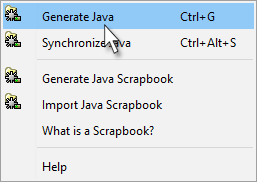
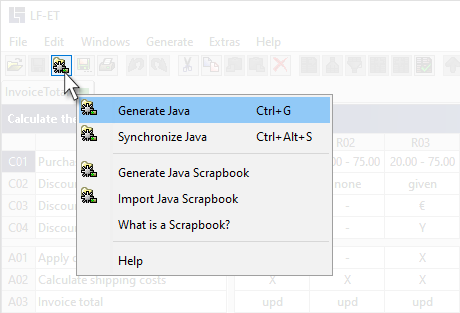
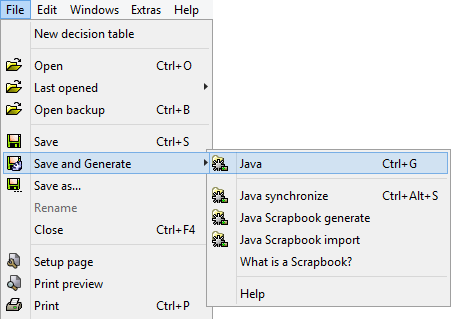
All functions for generating a program code from an already opened decision table are summarized in a generation menu:
|
In order to be able to call up the menu, Program generation must be activated, which is usually done only once at the project level. A good explanation starts here: Activate Java |

More than one language
If more than one programming language is activated in a decision table, in this example the Java and C# languages, an expanded generation menu is displayed:
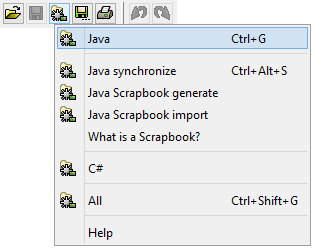
The language used most recently, in this case Java, is listed first and linked with the keyboard shortcut CTRL+G. The scrapbook functions are also offered for this language.
Alternatively, generation for another language (in this case C#) or generation for all languages activated in this decision table can be selected from this menu.