SaveAs PlantUMLDiagram
LF‑ET can generate PlantUML activity or state diagrams from decision tables and can save them as SVG or PNG files, respectively. Default options in the Save dialog can be adjusted individually using the keys described here.
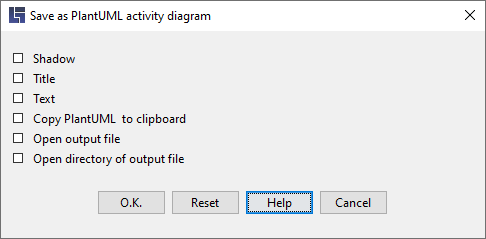
Use shadowing in the created diagrams:
SaveAsPlantUML.Shadow = true | false (default=false)Show the title of the decision table at the top of the created diagrams:
SaveAsPlantUML.Title = true | false (default=false)Also present the texts of conditions, actions and their values in the created diagrams:
SaveAsPlantUML.Text = true | false (default=false)Copy internally created PlantUML contents to system clipboard, e.g. in order to support during the analysis of potential problems while saving graphic files (SVG, PNG):
SaveAsPlantUML.Clipboard = true | false (default=false)Open the created graphic file with the default application specified for it in the operating system:
SaveAsPlantUML.OpenFile = true | false (default=false)Open the location (folder, directory) of the graphic file:
SaveAsPlantUML.OpenFolder = true | false (default=false)Entry in an LFET.Project.yaml-file:
LFET:

  SaveAs.PlantUML:
    Shadow: true
    Title: true
    Text: true
    Open:
      File: true