List-RG - Create a list of rule groups
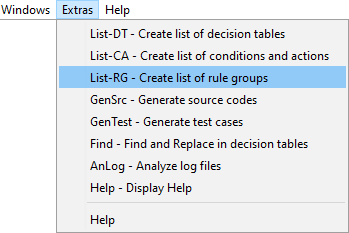
extras menu list rg

This function tracks and analyzes all relationships between nested decision tables and their rule groups. A decision table without rule groups is treated as a single rule group.
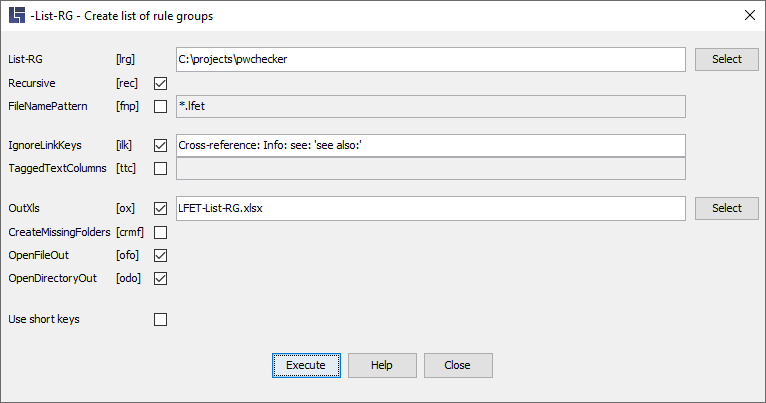
list rg 01

Since a rule group can be regarded as a process step, this list provides a good overview of the process steps contained in a process, including the interrelationships and the respective quantity structures, such as the rules, conditions, actions, etc. contained in each process step.

Necessary parameters

Parameter [short form]

-List-RG "Decision table or directory path" [‑lrg]

A decision table, several decision tables and/or directories can be specified as the starting point for the analysis. Several decision tables or directories are separated using a valid delimiter of the operating system (e.g. a semicolon ";" in Windows).

Optional parameters

Parameter [short form]

-Recursive [-rec]

This parameter causes all subdirectories to be searched, too.

-FileNamePattern "Name pattern" [‑fnp]

Restriction of the processing to files that match the specified name pattern.

Uppercase and lowercase letters are irrelevant.

For masking, you can use the characters
   *  for any string
   ?  for any single character

It is also possible to specify several patterns, separated by a comma or semicolon.

-TaggedTextColumns "Schlüsselwort-Liste" [‑ttc]

When lists of rule groups are created, specially selected parts of text of a rule group condition (usually C01) and from text of rule group values (C01/01, C01/02, etc.) can be presented in extra columns and marked in colours.

See also: TaggedTextColumns.

-OutXls "Datei-Name" [‑ox]

The output is written to the “File-Name” Excel file.

Permissible file extensions include: ".xls" and ".xlsx".

If the file name is mis­sing, the default setting "LFET-List-RG.xlsx" will be used automatically.

-CreateMissingFolders [‑crmf]

This parameter causes output directories that do not exist yet to be automatically created.

-OpenDirectoryOut [‑odo]

This parameter causes the directory containing the file created by -OutXIs to open automatically.

If the parameter -OutXIs is mis­sing, generation of the output file with the preset name will be triggered at the same time.

-OpenFileOut [‑ofo]

This parameter causes the file created by -OutXIs to be automatically opened with the system editor relevant for the file type (e.g., MS-Excel, etc.).

If the parameter -OutXIs is mis­sing, generation of the output file with the preset name will be triggered at the same time.