Expanding rules
Expanding rules for conditions
A single rule can be expanded specifically at a previously unused condition.
To expand, first select an empty condition cell and then click the expand button in the toolbar:
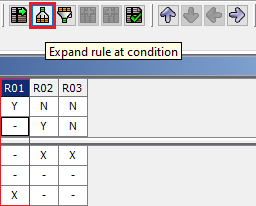
The rule is multiplied for all values of the marked condition:
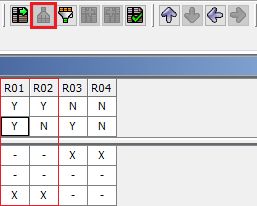
In addition to the icon in the toolbar, the function can also be executed via the context menu of rule cells and via the keyboard shortcut CTRL+ALT+X.
Expanding rules completely
A single selected rule or a group of selected rules can also be expanded completely "in one fell swoop".
The function is available in the context menu of the rule identifiers or as a keyboard shortcut CTRL+SHIFT+X:
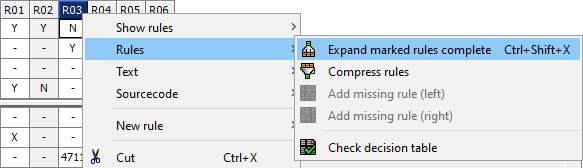
All expanded rules are displayed as marked:
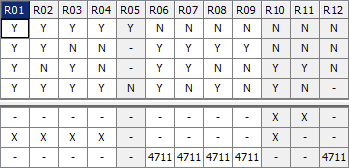
Limits when expanding completely
Depending on the number of rules created in this process, LF‑ET reacts differently:
-
From 100 new rules: A warning is displayed and the user can decide whether the expanding should be executed or not.
-
From 1,000 new rules: An error message is displayed and the execution of expanding is not offered.
-
If necessary, the value for triggering the error message can be increased in the configuration file Project.ini with the key ExpandRulesLimit.
-
Sample application: In the case of customers who use LF‑ET e.g. in the area of product configuration, developers always work on fully compressed decision tables (more than 100 rules). However, for productive use (CAD systems, catalog creation, etc.), the decision tables need to be expanded completely (many thousands of rules).