Find – Search and Replace
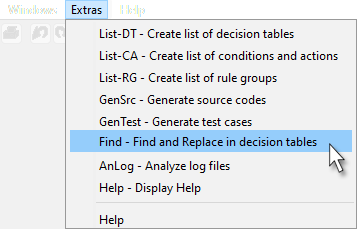
find 01

The -Find function can be used to search for specific character strings in decision tables. The character strings found can optionally be replaced with other values.

  • This function can only be applied in decision tables saved in the file system.

  • If character strings are replaced in a decision table a backup copy of the decision table is automatically created in advance.

  • A compacted overview of all search results is offered in the form of an Excel file. Filtering of the "Hits" column enables all hits and replacements, if any, to be displayed.
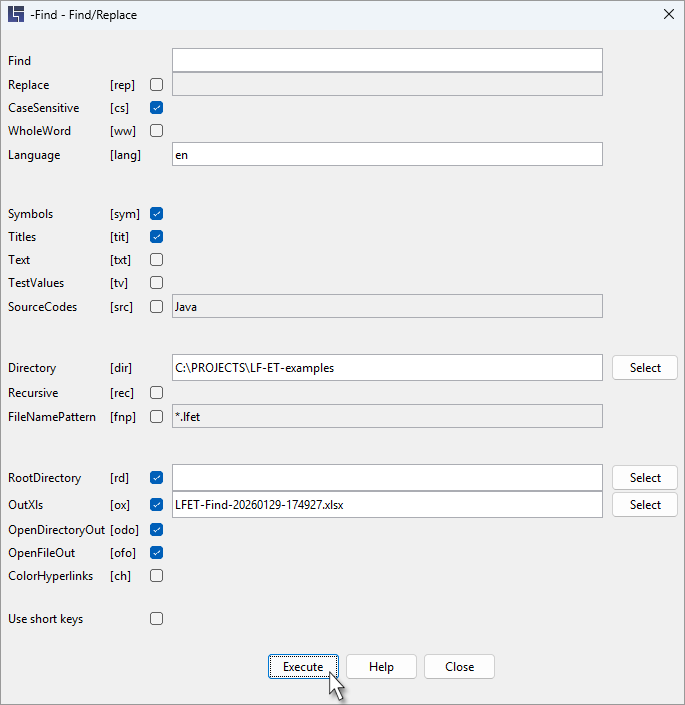
find 02

What should be searched for?

Parameter [short form]

-Find "Search term"

Search for a "search term" in decision tables.

-Replace "Substitute term" [‑rep]

Optional: Found search terms should be replaced with the substitute term. Whenever replacements are made in a decision table, a backup of the respective table is automatically created beforehand.

-CaseSensitive [‑cs]

Optional: Respect case sensitivity.

-WholeWord [‑ww]

Optional: The search term should only be considered a match if it appears as a standalone word, i.e. it is not immediately preceded or followed by any letters.

-Language "de|en" [‑lang]

Standard: de

Applicable to multilingual decision tables only: This parameter specifies the language of the elements (symbols, titles, texts) in which the search term is to be searched.

In which elements should the search be run?

See also the -Language parameter

Parameter [short form]

-Symbols [‑sym]

Search in all symbols of condition and action values.

-Titles [‑tit]

Search in all titles of conditions, condition values, actions and action values.

-Text [‑txt]

Search in all stored texts.

-TestValues [‑tv]

Search in all test instructions.

-Sourcecodes "Language" [‑src]

Search in all source codes of the specified langauge, e.g. Java.

In which decision tables?

Parameter [short form]

-Directory "Directory name" [‑dir]

This parameter specifies the directory where the system should search for decision tables. It is also possible to specify several directories, separated by the delimiter valid in the operating system (e.g. a semicolon ";" in Windows).

-Recursive [‑rec]

This parameter causes all subdirectories to be searched, too.

-FileNamePattern "Name pattern" [‑fnp]

Restriction of the processing to files that match the specified name pattern.

Uppercase and lowercase letters are irrelevant.

For masking, you can use the characters
   *  for any string
   ?  for any single character

It is also possible to specify several patterns, separated by a comma or semicolon.

Logging

Parameter [short form]

-RootDirectory "Directory namee" [‑rd]

This parameter causes all directories in the log output relative to the directory specified here to be represented. If the entry for the directory name is mis­sing, the directory resulting from the parameter -Directory is automatically used.

-OutXls "File name" [‑ox]

This parameter can be used to determine a specific name for the result file, if necessary, also with directory specification. The name must end with ".xlsx" or ".xls".

-OpenDirectoryOut [‑odo]

This parameter causes the directory where the result file was written to be opened automatically.

-OpenFileOut [‑ofo]

This parameter causes the created result file to be automatically opened with the corresponding system editor (e.g. MS-Excel or OpenOffice).

-ColorHyperlinks [‑ch]

Hyperlinks in Excel files are not automatically highlighted visually in LF‑ET. By specifying this parameter, all hyperlinks are displayed in blue and underlined.