Moving rows or columns
Changing the sequence of rows or columns
Using keyboard shortcuts
-
Select the row or column to be moved.
-
To move, press the SHIFT key together with the one of the ARROW keys:
-
in the area of conditions and actions
SHIFT + ARROW UP or
SHIFT + ARROW DOWN -
in the area of rules
SHIFT + ARROW LEFT or
SHIFT + ARROW RIGHT
-
Using the icon bar
-
Select the row or column or the title of the condition or action to be moved.
-
To move, click

 in the icon bar in the area of conditions and actions, or
 in the rules area.
Using the context menu
The context menu for a condition, action, rule or cell is retrieved with a right mouse click or with ALT + F10.
In the context menu a row…
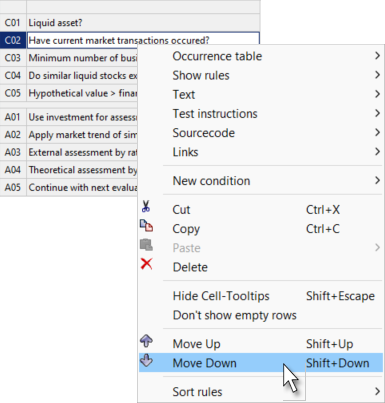
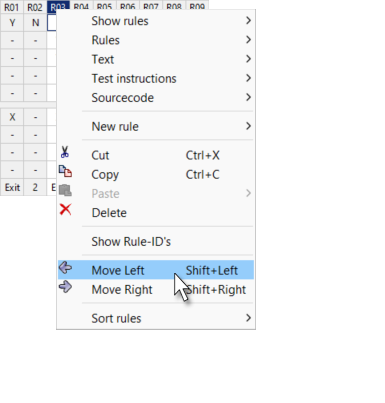
…or a column can be moved.
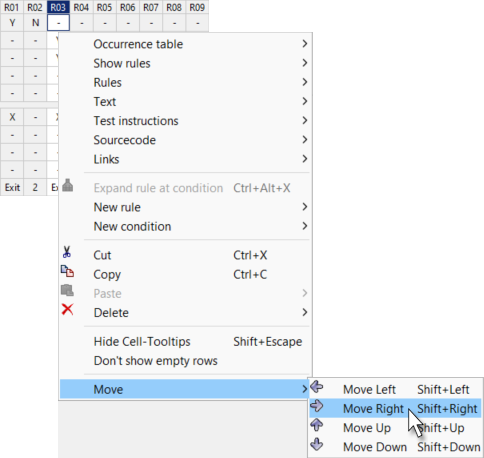
If only a single rule cell is selected, the row or column can be moved.
| As an alternative to moving, rows and columns can also be moved by cutting and pasting. |