Activate Java
As an example, we use a Java demo project consisting of:
-
an empty Java-Package lfet.demo
-
a matching resource directory containing the decision table InvoiceTotal
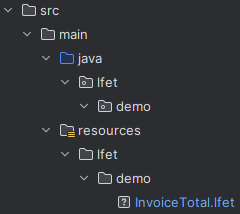
The decision table is – and remains – purely functional, i.e. it does not contain any technical information regarding the desired Java generation.
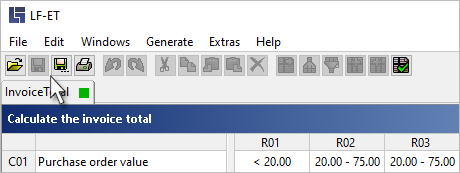
In this status, Java generation is not yet available for the project. This can be recognized, for example, by the fact that the generate icon  is missing in the symbol bar:
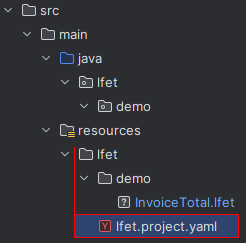
One-time activation of Java in resources/lfet
In order to activate generation of Java for all decision tables in the directory hierarchy of resources/lfet/, a new configuration file lfet.project.yaml is created in the resources/lfet/ directory:
lfet:                    # 1)

  ide:
    default: java        # 2)
Entries in detail: |
|---|
|
|
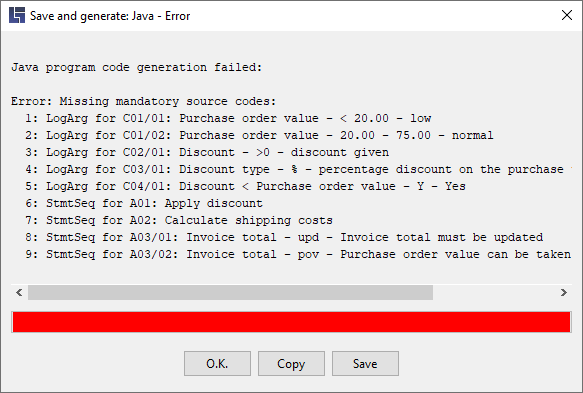
Generation is still failing
Though Java generation is now available for the project, once it is started,
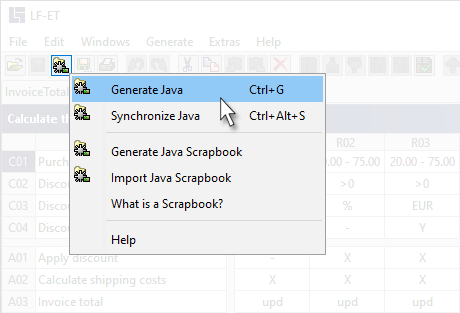
it still terminates with an error message since it has not been configured that the recommended Generation Variant 1 (Interface and Rules Module) should be used:
| The fastest way to start program generation is to use the keyboard shortcut CTRL+G |