Parameter [short form] |
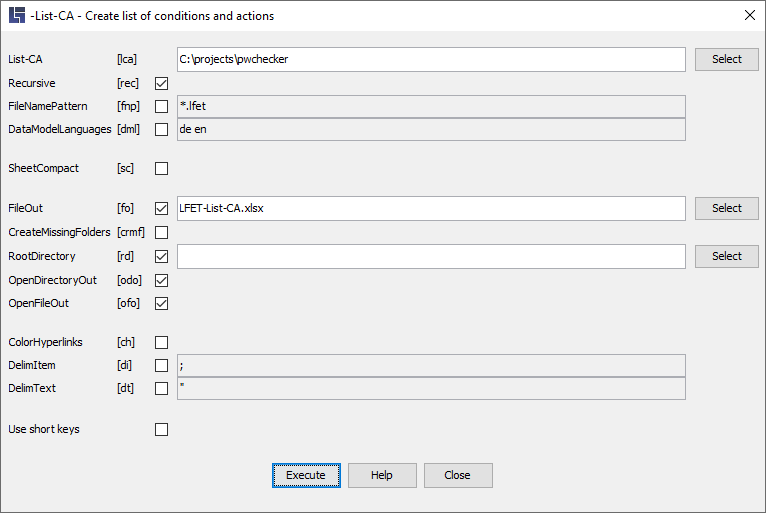
- -Recursive [-rec]
-
This parameter causes all subdirectories to be searched, too.
|
- -FileNamePattern "Name pattern" [‑fnp]
-
Restriction of the processing to files that match the specified name pattern.
Uppercase and lowercase letters are irrelevant.
For masking, you can use the characters
* for any string
? for any single character
It is also possible to specify several patterns, separated by a comma or semicolon.
|
- -DataModelLanguages … [‑dml]
-
Only used in exceptional cases if there are multiple language decision tables. LF‑ET supports at present German and English, see also: Language settings.
This parameter can be used to select precisely this language or those languages with which the list is to be created.
At present, possible parameter values include "de" and/or "en".
|
- -SheetCompact … [‑sc]
-
Still "experimental" and only to be output in Excel: this option is used to produce, in another Excel sheet, a more compact list of conditions and actions that should support professional communication in particular.
|
- -FileOut "File name" [‑fo]
-
The output is written to the “File-Name” file.
Permissible file extensions include: ".xls", ".xlsx", ".csv" and ".txt".
If the name ends with ".xls" or ".xlsx", the output is presented directly in MS Excel format. Otherwise, a text file will be created in CSV format.
If the file name is missing, the default setting "LFET-List-CA.xlsx" will be used automatically.
|
- -CreateMissingFolders [‑crmf]
-
This parameter causes output directories that do not exist yet to be automatically created.
|
- -RootDirectory "Directory name" [‑rd]
-
This parameter causes all directories in the output relative to the directory specified here to be represented. If the entry for the directory is missing, the directory resulting from the parameter -List-CA is automatically used.
|
- -OpenDirectoryOut [‑odo]
-
This parameter causes the directory containing the file created by -FileOut to open automatically.
If the parameter -FileOut is missing, generation of the output file with the preset name will be triggered at the same time.
|
- -OpenFileOut [‑ofo]
-
This parameter causes the file created by FileOut to be automatically opened with the system editor relevant for the file type (e.g., Notepad, MS-Excel, etc.)
If the parameter -FileOut is missing, generation of the output file with the preset name will be triggered at the same time.
|
- -ColorHyperlinks [‑ch]
-
Hyperlinks in Excel files are not automatically selected in LF‑ET. By specifying this parameter, all hyperlinks are displayed in blue and underlined.
|
- -DelimItem "x" [‑di]
-
The default column separator (;) can now be changed to another value.
This parameter is only relevant for output in CSV format.
|
- -DelimText "y" [‑dt]
-
The default column separator (") can now be changed to another value.
This parameter is only relevant for output in CSV format.
|