Text editor
A basic text editor is used in LF‑ET for creating and editing plain texts:
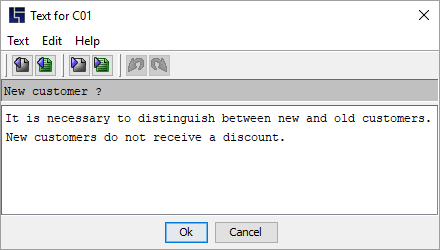
Opening the text editor
- With the context menu
-
The text editor can be opened via the context menu. You can access the context menu with SHIFT+F10 or by clicking the right mouse button:
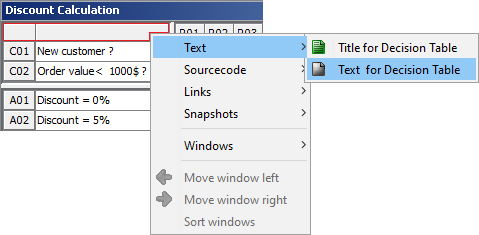
Alternatively, you can retrieve any text of the decision table (retrieve the context menu with the right mouse click in the decision table) and open the respective text.
In this example the text of the C01 condition is retrieved:
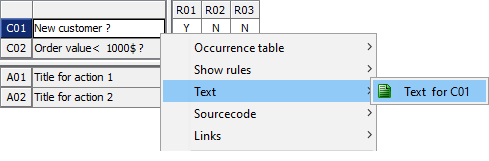
- With keyboard shortcuts
-
This is the fastest way and functions everywhere: Using CTRL+SHIFT+T the text for the currently focused decision table element is opened. It is a global keyboard shortcut that functions everywhere.
- In the editor
-
In order to switch to another text, there is no need to exit the editor: The navigation elements in the toolbar can be used to open the preceding or subsequent text. Any changes to the current text are saved automatically:
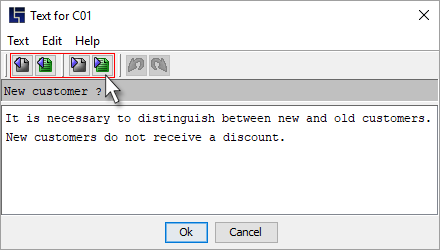
Icons
The following icons are used in the text editor
Icons |
Explanation |
|---|---|
|
Goto previous text (filled or empty) |
|
Goto previous “filled” text |
|
Goto next text (filled or empty) |
|
Goto next “filled” text |
|
Undo changes |
|
Redo undone changes |


Keyboard shortcuts
Keyboard shortcut |
Purpose |
|---|---|
F1 |
Retrieve help |
ALT+F4 |
Save and exit editor |
CTRL+A |
Select all text editor area |
CTRL+PG DOWN |
Jump to next text element |
CTRL+PG UP |
Jump to previous text element |
CTRL+SHIFT+PG DOWN |
Jump to next filled text element |
CTRL+SHIFT+PG UP |
Jump to previous filled text element |
CTRL+C |
Copy the selected character string to clipboard |
CTRL+S |
Save and exit text editor |
CTRL+V |
Paste character string already copied to clipboard |
CTRL+X |
Cut the selected character string and save to clipboard |
CTRL+Y |
Redo undone changes |
CTRL+Z |
Undo changes |