Saving as PlantUML, activity or status diagram
PlantUML is an open-source documentation tool for creating of UML diagrams under GNU General Public License (https://en.wikipedia.org/wiki/PlantUML).
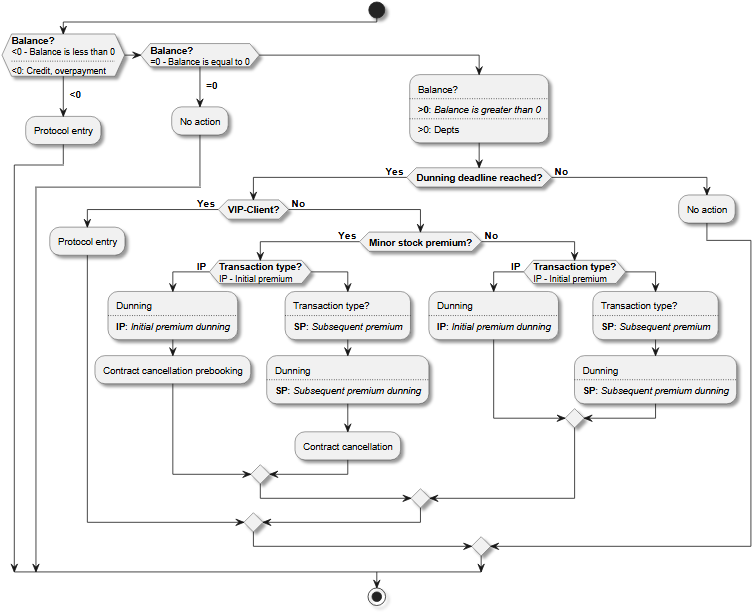
LF‑ET can create PlantUML activity or PlantUML state diagrams from decision tables and can save them either as SVG or PNG files:
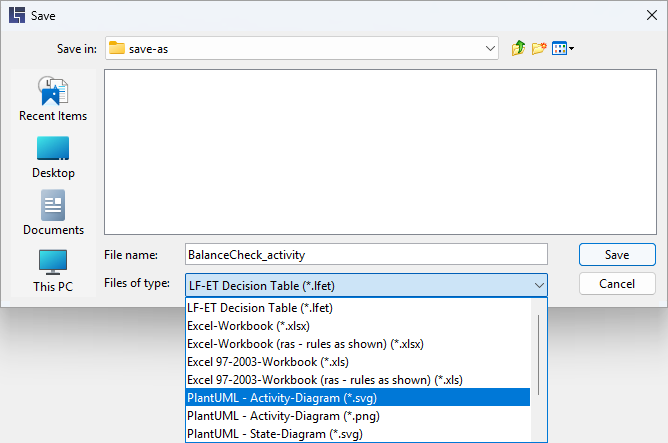
Saving as PlantUML is called via File > Save as…:
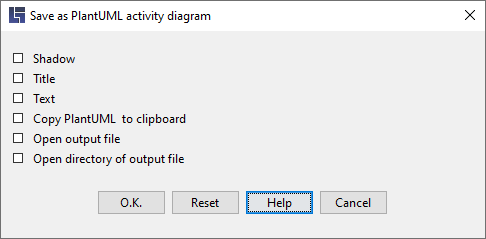
The following options are available:
-
Use shadowing in the created diagrams
-
Show the title of the decision table at the top of the created diagrams
-
Also present the texts of conditions, actions and their values in the created diagrams
-
Copy internally created PlantUML contents to system clipboard, e.g. in order to support during the analysis of potential problems while converting to graphic formats such as SVG or PNG
-
Open the created graphic file with the default application specified for it in the operating system
-
Open the location (folder, directory) of the graphic file.
TIP: Default settings for these options can be changed using SaveAs key for PlantUML in a LFET.Project.ini file.
Hints:
-
PlantUML has a preset size limit of 4096x4096 pixels when creating graphic formats which means that large diagrams may not be displayed completely
-
SVG is usually not affected by this limitation and is therefore the recommended format
-
SVG-files can be opened and displayed directly by all common browsers
-
SVG-files can also be imported and further processed in most common graphic programmes, e.g. Visio or Gimp
Should any errors occur, which is a rather rare case, you can copy and check internally generated PlantUML contents in the PlantUML-Online-Server in order to run an analysis of problems. -
To do this, retrieve the PlantUML Online Server https://www.plantuml.com/plantuml/uml/
-
Repeat generation with the option "Copy PlantUML to clipboard" and then paste the PlantUML content into the text field at the top of the online server, the easiest way to do this is with the keyboard shortcut CTRL + V
-
Error messages that are then displayed there usually help to identify the cause of the problem, e.g. that special characters are used in titles or texts in a decision table
-
Any information on problems that occurred help us improve LF‑ET, i.e. whenever possible, you are kindly requested to report any problems to us e.g. via e-mail at support@lohrfink.de