Import from clipboard
This feature allows you to import any number of conditions or actions into the decision table.
-
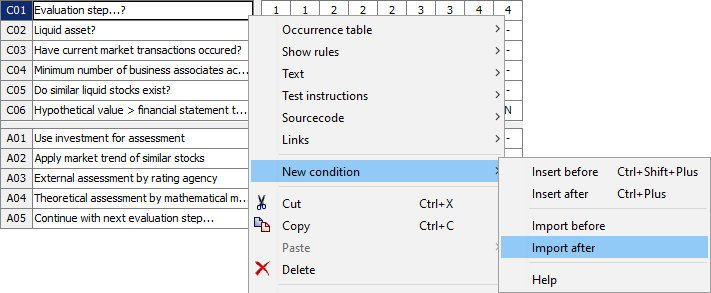
Select the condition or action before or after which the new conditions or actions should be inserted by e.g. right-clicking on the identifier or on the title of a condition or action.
-
Select New condition or New action from the context menu by right-clicking.
-
Then select Import before (above) or Import after (below).
Prerequisites
This import feature is only available if
-
The clipboard contains a text with at least 2 filled lines.
-
The first line features the following entry: Title;Symbol&Description.
-
The first line is used a) to quickly detect a valid content in the clipboard and b) to define the separators between title and symbol or between symbol and description of a value.
-
; — separates the title from the values and the values from each other. It can be any separator such as a semicolon, a comma or a tab character.
-
& — separates the symbol from the description for a value and can be any special character, such as e.g. &, # or $.
-
-
It is only in the first line that no spaces are allowed.
-
Case sensitivity is irrelevant for the first line.
-
Empty lines are ignored.
-
A filled line contains at least the title and optionally one or more values.
-
All imported conditions and actions are created with value table, so the imported values can be checked quickly: simply "browse" through the value table editor:
Examples of data to be imported
Here is an example of several conditions to be imported. You can simply copy the lines selected in light blue to clipboard and then try the import function:
Title;Symbol&Description
Balance?;<0&balance smaller 0 (overpayment);=0&balance equal 0;>0&balance greater 0
Dunning deadline reached?
VIP customer?
Premium type?;EP&First premium;FP&Follow-up premium
However, contents from spreadsheet programs, such as Excel, can be copied just as well. You can find a sample file here.