When an error occurs
LF‑ET is extensively tested by us, both mechanically and manually, for correct behavior and accuracy. Nevertheless, should an error occur,
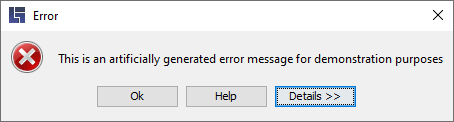
you are kindly requested to follow the instructions in these sections.
Saving error information
If a runtime error occurs, a window automatically appears with information on the problem that has occurred
You can use the "Details >>" button to expand the window to obtain comprehensive information on the problem and the current system status.
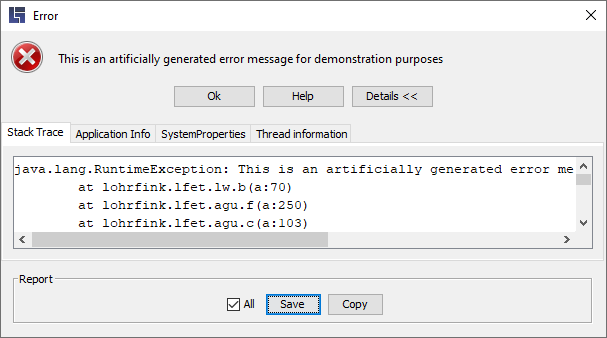
Please activate "All" in the detail view and then click "Save" to store all information as a text file:
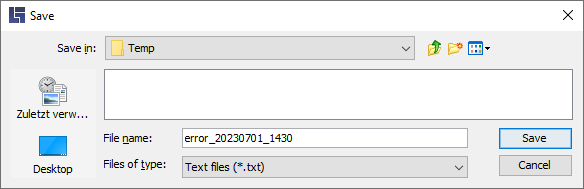
Sending error
We strive for the best possible quality of our products. You can support us by informing us of any errors you have encountered. The following information is thus important.
-
Error information saved as a file (see previous section).
-
A short description such as e.g. how the error occurred or how the error can be reproduced
-
If possible, the decision table concerned.
Send this information to the following e-mail address: support@lohrfink.de
End error loop
This chapter describes the solution of an extreme exception that should never happen to the user.
If the error window appears again and again and LF‑ET can no longer be operated normally, then this "error loop" can be ended as follows
-
Expand the error window by clicking "Details >>".
-
Important: If possible, save error information using the “Save” button (see previous section).
-
Close LF‑ET by clicking “Terminate application”.
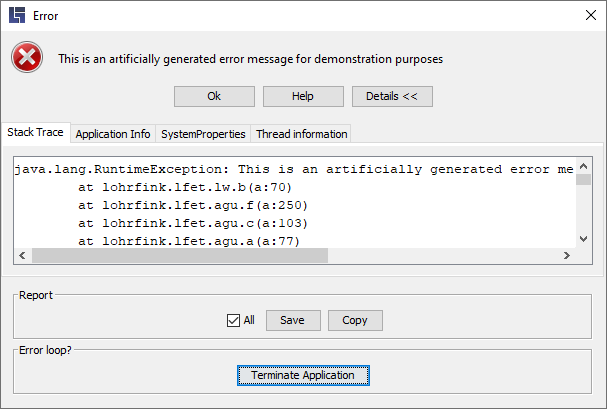
Since LF‑ET was aborted "hard", it may be necessary to manually delete write protection files (.lfet_$temp) of decision tables that were open.
Please inform us about errors that have occurred, as described in the previous section.
|
Additional information: |